


A slow storefront does not always need a new theme. Before rebuilding your Shopify store, identify which pages feel slow, which features customers actually use and which changes can be tested safely. A focused audit often provides a clearer starting point than installing another optimisation app.
This guide is for UAE merchants who want to improve loading, responsiveness and layout stability while keeping their current storefront design. It does not promise a particular score or a sales increase.
1. Measure the pages customers use
Test the homepage, a busy collection, a typical product and the cart. Use the same URLs and conditions when comparing changes. Note whether the problem is a slow main image, a delayed menu, filters that freeze or content that jumps after loading. These are different problems and should not be treated with one generic fix.
Shopify’s performance guidance identifies themes, apps and additional third-party code as important areas to review. Start with those areas, then test changes against your store’s actual customer tasks.
2. Make a safe copy before editing
Duplicate the live theme and record the current app embeds, settings and tracking setup. Keep a short change log with the page tested, what changed and what happened. Test functional changes on the duplicate before publishing it.
A theme copy does not back up every store setting or app database. Export or document important data separately where needed. Do not remove an app until you understand which subscriptions, product options, reviews or integrations depend on it.
- Capture the current desktop and mobile appearance.
- List scripts and embeds that are expected to run.
- Choose one representative collection and product for repeat tests.
- Define a rollback point before editing theme code.
3. Reduce unnecessary media weight
Upload images suited to their display size rather than oversized originals. Preserve enough detail for product inspection, especially for jewellery, skincare packaging or textured materials. Use responsive image output so a phone does not receive an unnecessarily large desktop image.
Consider whether a large autoplay video or a multi-slide hero is earning its cost. A strong static image with clear copy may communicate the offer more efficiently. Keep media dimensions defined so the page can reserve space while images load.

4. Audit apps and tracking scripts
Build a list of app features that appear on the storefront. Look for overlapping popups, duplicated review widgets, unused chat tools or abandoned experiments. Ask the app provider or developer what remains after uninstalling an app; leftover theme snippets or tags may need a separate review.
Check tag-manager containers for repeated analytics installations and obsolete campaigns. Removing tracking blindly can make business reporting worse. Compare the value of each script with the customer experience it affects, and verify important events after changes.
5. Simplify busy page templates
A product page with several recommendation carousels, video galleries, social feeds and sticky widgets can become harder to use as well as heavier to load. Keep the buying information easy to find: product details, the correct variant, delivery information and a clear purchase action.
For large collections, review pagination, filters and the number of products initially displayed. Test filtering on a real phone with realistic catalogue data. Avoid hiding essential product information behind features that load unreliably.
6. Verify the shopping journey after each change
- Open the menu and search on mobile.
- Select a product variant and check its image and availability.
- Add the correct variant to the cart and change the quantity.
- Check that discounts and delivery messaging remain accurate.
- Verify analytics events using an approved test workflow.
Use repeat measurements and available real-user data. A laboratory result can help diagnose a problem, but one improved score does not prove every shopper now has a faster experience. Keep a record of changes that improve both performance and usability.
A live-store walkthrough: choose repeatable test pages
For a concrete example, we opened Zensual Cosmetics’ live Shop collection and then its BOX ANTIAGE product page. The collection presents product images, names, prices, sorting and availability filters; the product page adds a gallery, quantity control and purchase actions. These are two different templates to include in a performance audit.
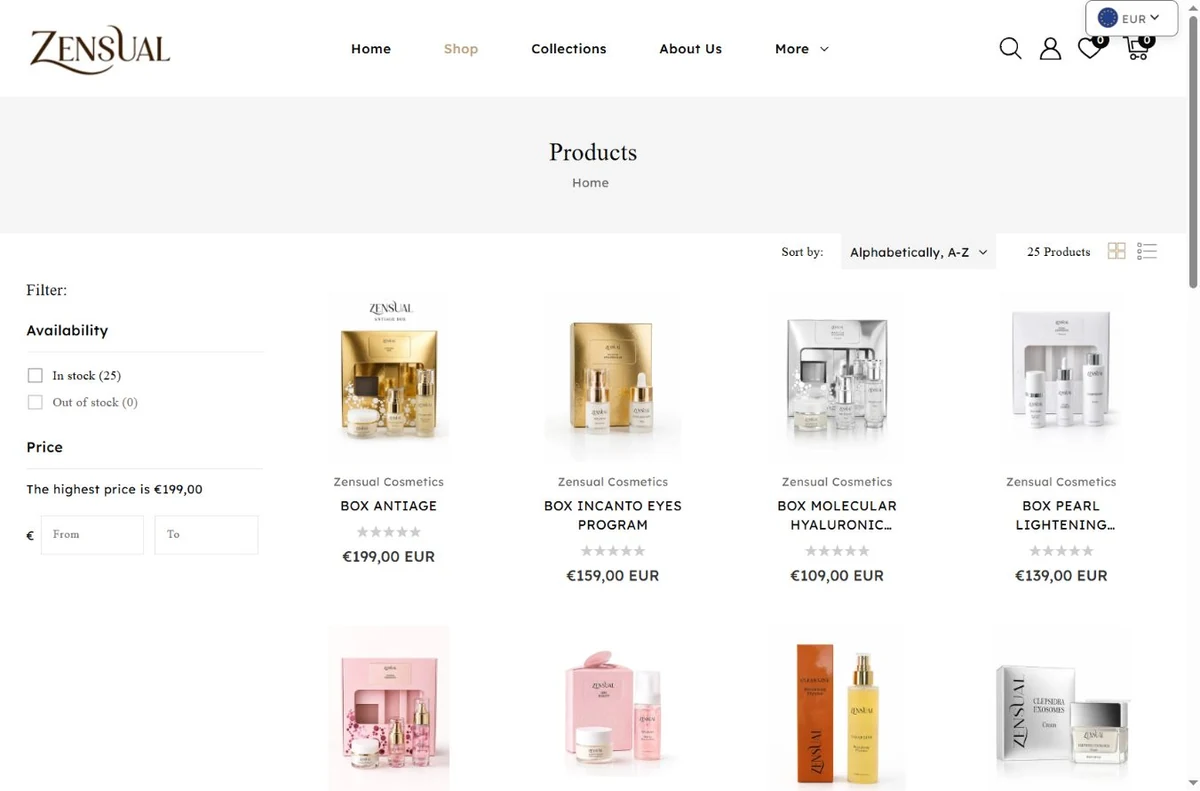
- Record the collection URL. Start with the Shop collection. Note the viewport and initial product order, then capture the page before changing theme settings.
- Choose one product as a second test. We followed the BOX ANTIAGE card to its product page. Check the main image, gallery controls and purchase-button visibility separately from the collection grid.
- Repeat on a phone. The mobile collection uses a “Filter And Sort” control instead of the desktop sidebar. Open it and check that closing it returns you to the same collection without losing your place.
- Keep appearance and performance checks separate. Measure these same URLs under repeatable conditions, change one item at a time on a duplicate theme, then compare image clarity, navigation and loading. Use the store’s approved test process for any cart or checkout checks.
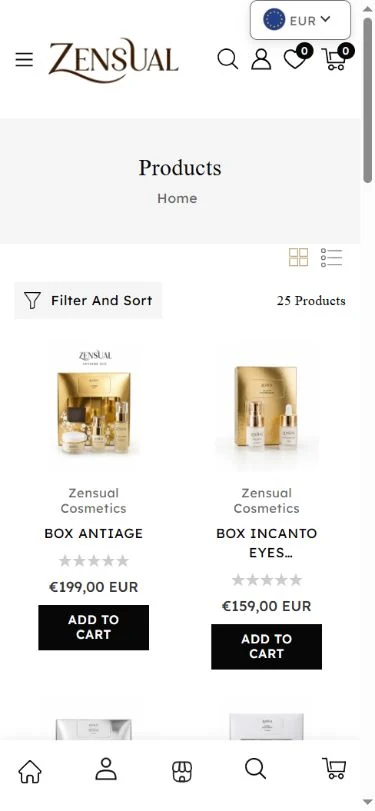
The screenshots document the public interface captured on 22 October 2026. They establish a repeatable audit route, not a measured speed improvement or a claim about the store’s conversion rate. For the related project context, see the Zensual storefront showcase.
Frequently asked questions
Should I install a speed optimisation app first?
Start by diagnosing the bottleneck. An additional app may not address an oversized hero image, duplicate tracking or a complex product template, and can introduce its own dependencies.
When is a new theme worth considering?
Consider a replacement when the current theme is difficult to maintain, lacks required features or needs extensive changes to support a reliable customer experience. Compare the scope with targeted fixes before deciding.
Can speed improvements change the design?
They can, particularly when removing carousels, widgets or fonts. Agree which visual elements must remain and review the duplicate theme before release.
For a focused audit, explore Shopify speed optimisation. If the buying experience also needs attention, see Shopify web design and our Shopify SEO guide. You can share your storefront and the pages causing problems to discuss the next step.