

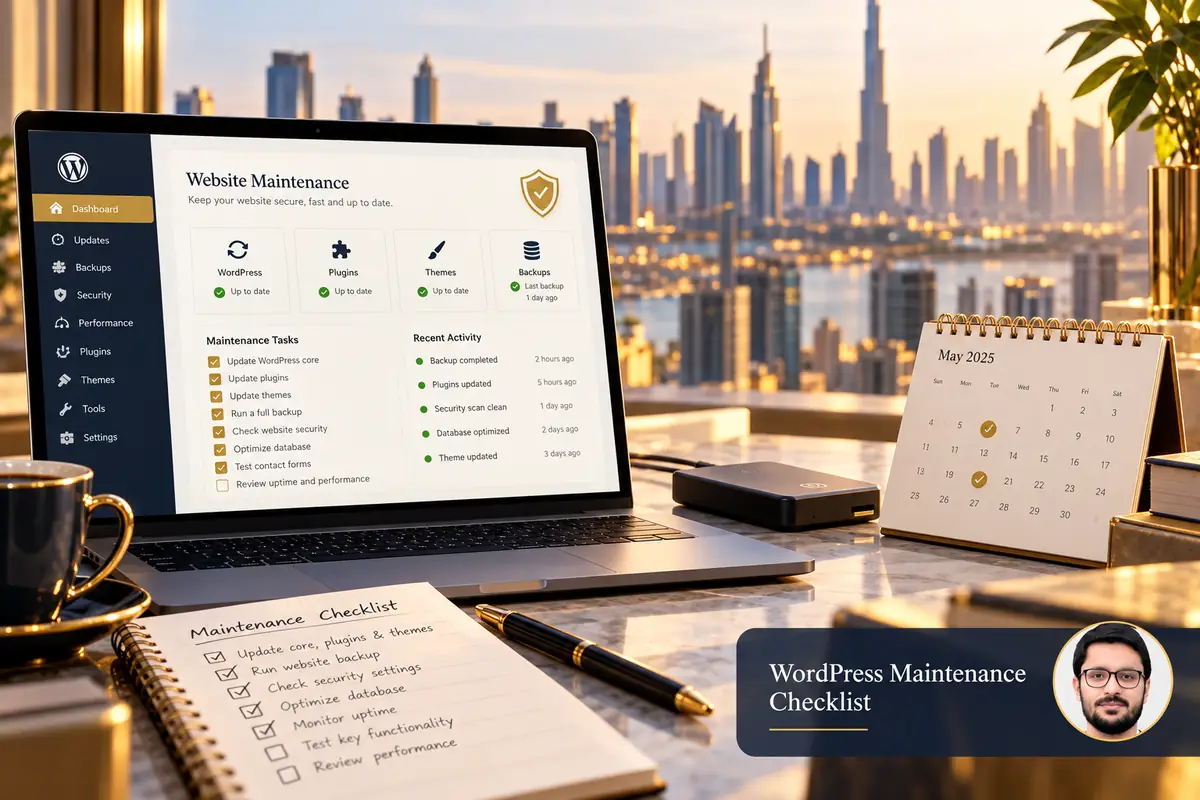
A WordPress website needs attention after launch. Software changes, enquiry forms can stop delivering messages and content can become inaccurate even when the homepage still looks normal. A monthly maintenance routine makes these issues visible before they become business problems.
This checklist is a starting point for a Dubai business website. Stores, booking platforms and frequently updated sites usually need more frequent checks and backups than a small brochure website.
1. Confirm backups can actually be restored
Check the last successful backup, what it contains and where it is stored. A complete recovery plan covers the database and the files needed to recreate the site. A success email alone does not show that the archive is readable or that your team can restore it.
Choose a backup frequency that matches how much information you could reasonably lose. A busy store needs a different recovery point from a site updated once a month. Test restoration separately and document who can access the backups.
2. Review updates before applying them
WordPress recommends backing up before updating. Its official update guidance explains the supported methods. Combine updates with compatibility checks rather than clicking through a long queue without reviewing the outcome.
Use staging for changes affecting page builders, ecommerce, multilingual content or custom functionality. Record versions changed and keep a rollback option. Security-related changes may need prompt attention rather than waiting for the monthly appointment.
- Review core, theme and plugin updates.
- Check whether critical extensions remain supported.
- Remove unused extensions after checking dependencies.
- Retest important pages after changes.
3. Test forms, bookings and checkout
Submit a clearly labelled test enquiry and confirm it reaches the correct destination. Check both the success message and the stored submission where applicable. Try realistic phone numbers and confirm validation messages fit on mobile.
For booking or ecommerce sites, follow the platform’s safe test process. Check notifications and CRM integration. Avoid unintended live payments or unnecessary messages to real customers. An attractive form is not useful if the submitted enquiry never reaches the team responsible for replying.
4. Review access and account ownership
Review administrator accounts and remove access that is no longer required through normal account management. Give each person access appropriate to their role. The business should control its domain, hosting and key service accounts rather than depend on a former employee’s personal login.
Keep renewal and recovery ownership clear. Do not put passwords in shared maintenance spreadsheets or support screenshots. With an external provider, agree how access is granted, reviewed and withdrawn when the relationship ends.
5. Inspect performance and broken pages
Open the homepage, priority service pages, a recent article and contact page on desktop and mobile. Look for missing images, shifting layouts, unreadable text and navigation problems. Test key links and investigate any reported broken URLs.
Compare performance using similar conditions. New videos, tags or plugins may explain a change. Diagnose the issue before adding an optimisation plugin that overlaps with hosting features. Keep a clear record of what was changed so future troubleshooting has useful context.
6. Keep business information current
Check contact details, working hours, services, team information and project examples. Review policies with the appropriate owner when business processes change. Remove expired offers and ensure brochures still match the website.
The WordPress maintenance documentation treats upkeep as recurring work. Make your own log specific: what was checked, what failed, who owns the fix and when it will be reviewed.
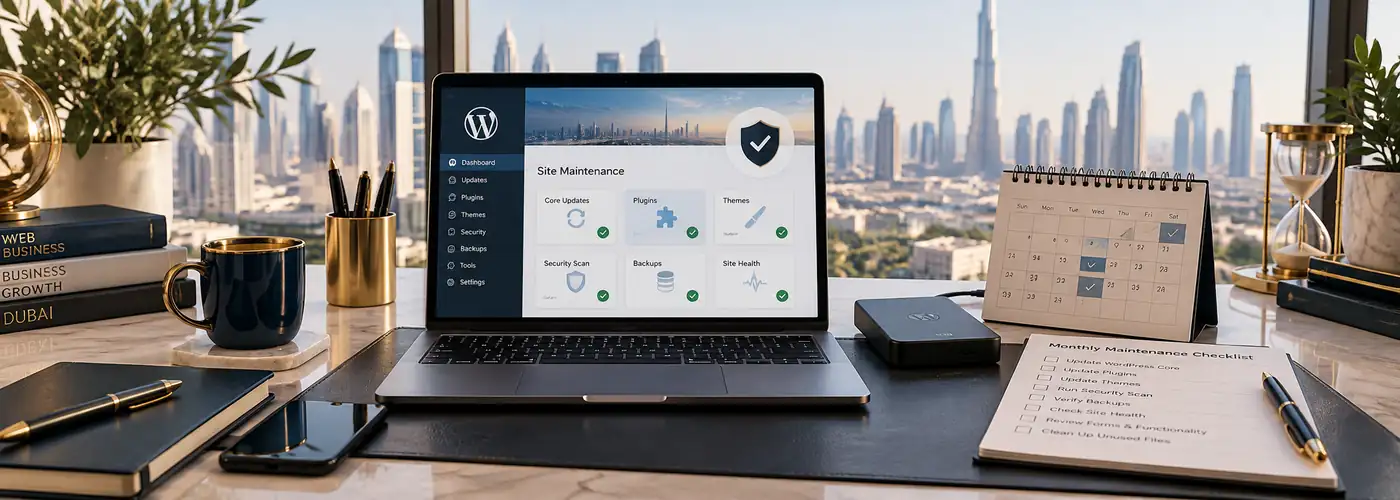
Monthly handover checklist
- Record backup status and the latest restore test.
- List updates and compatibility issues.
- Confirm customer-journey test results.
- Review access, renewals and expired content.
- Assign unresolved issues and the next action.
Frequently asked questions
Is monthly maintenance enough for every website?
No. Frequency depends on activity, risk and integrations. A store receiving orders needs closer monitoring than a rarely updated information site.
Do automatic updates replace testing?
No. They reduce manual work, but forms, layouts and integrations still need checks after changes.
Should I keep old plugins installed?
Keep only what is needed and maintained. Check dependencies before removing extensions that manage data or customer-facing functionality.
Explore WordPress maintenance support or website maintenance services. Our WordPress budgeting guide helps frame larger improvements. Share your maintenance requirements to plan the next step.